
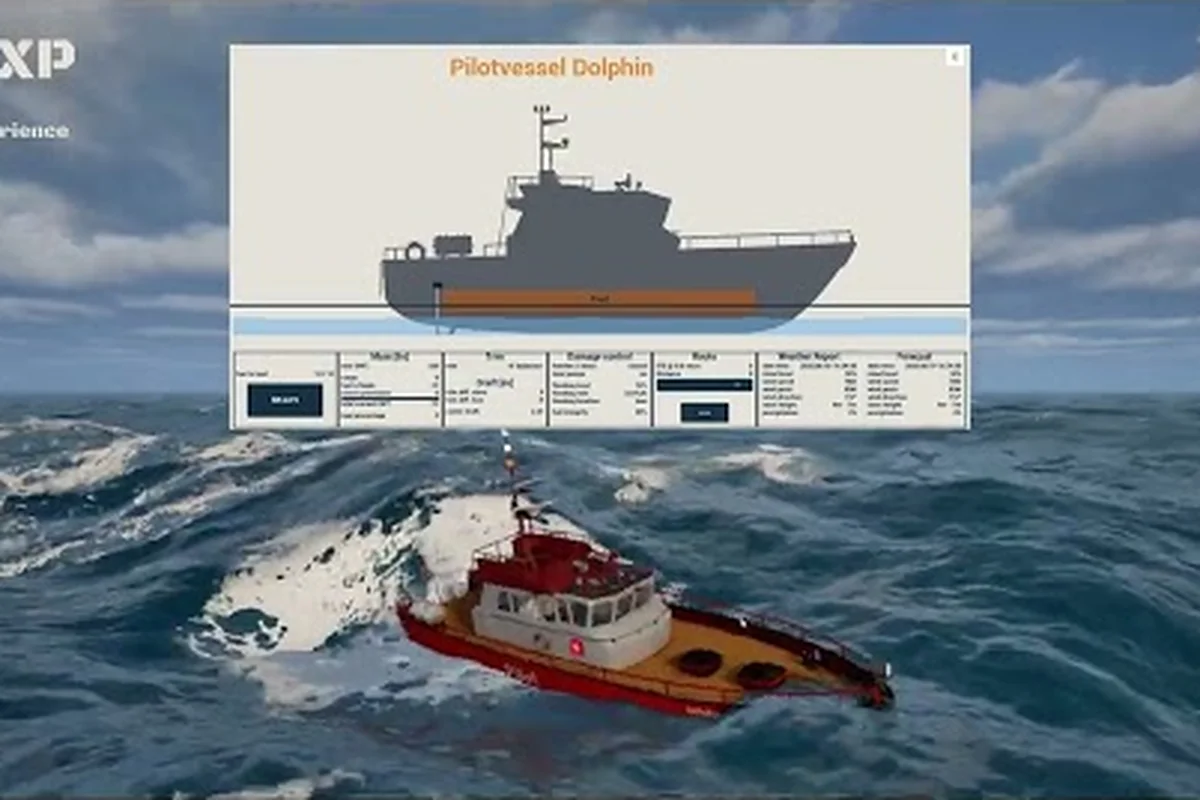
Picking the right Professional Ship Simulator weather modes is the single biggest lever you have for shaping a session, because every mode trades a different kind of realism against a different kind of control. Whether you want a glassy harbor for practicing berthing or a full storm front for testing seamanship, the game exposes the same underlying simulator through three primary configuration paths plus a pause-menu custom override. Understanding how those paths differ — and what each one does to wave height, wind variability, and time-of-day coupling — saves you from spawning into conditions that either feel lifeless or simply overwhelm the vessel you have not yet learned to handle.
The Three Core Professional Ship Simulator Weather Modes
At the structural level, Professional Ship Simulator groups its weather handling into three primary modes: a static Realistic Weather mode driven entirely by the time-of-day clock, a Dynamic Weather mode that evolves on a randomized timeline, and a Real-Time Weather mode that syncs the in-game sky to actual wall-clock conditions outside the simulator. Each of these modes is selected before launch, and each one is paired with a continuous weather slider that controls intensity.
Realistic Weather Mode
Realistic Weather is the closest thing to a fixed-state configuration in Professional Ship Simulator, because every variable in the simulation is hard-linked to the in-game clock rather than to any randomized decay timer. When you start a session at 06:00 with the slider at 50%, you are guaranteed a sunrise sky, a specific Beaufort-correlated wind band, and a corresponding sea state that will hold until the clock reaches a new macro bucket. According to the official Professional Ship Simulator store page, this mode is the recommended starting point for players who want repeatable scenarios, because the same launch time always produces the same conditions.
| Property | Realistic Weather Behavior |
|---|---|
| Driver | In-game time-of-day clock |
| Variability | Deterministic per clock bucket |
| Best For | Training runs, screenshots, repeatable tests |
| Time-to-Change | Fixed at clock transitions (sunrise/midday/dusk/night) |
| Custom Override | Available via pause menu |
Dynamic Weather Mode
Dynamic Weather is the mode that most players associate with the phrase "Professional Ship Simulator dynamic weather," and it is the default suggested for solo career progression. The simulator picks a random starting condition based on the time of day, then schedules a new weather change at a random time t chosen between a minimum value and that value doubled, so the actual interval is genuinely unpredictable. Community testing reported by players suggests typical cycles run between 8 and 20 simulated minutes, which produces enough variety to keep a coastal run interesting without throwing a storm front at you every ten minutes.
| Property | Dynamic Weather Behavior |
|---|---|
| Driver | Random timer with t-to-t×2 window |
| Variability | High; conditions can change mid-route |
| Best For | Career mode, long crossings, immersion |
| Time-to-Change | Randomized per transition |
| Forecast Support | Available (WIP per in-game radio) |
Real-Time Weather Mode
Real-Time Weather is the newest of the three and the one that ships most naturally with the Professional Ship Simulator Knowledge Base weather documentation as a flagship feature. The simulator samples the host machine's wall-clock time and pulls a matching preset, which means a session launched at 03:00 local on a stormy night may open directly into heavy weather, while the same launch at noon the next day yields flat conditions. This mode is excellent for streamers and for anyone who wants their schedule to dictate the challenge, but it does remove the ability to deliberately pick a fair-weather day for practicing maneuvers.
| Property | Real-Time Weather Behavior |
|---|---|
| Driver | Host OS wall-clock time |
| Variability | Mirrors real-world local conditions |
| Best For | Streamers, real-schedule immersion, surprise runs |
| Time-to-Change | Continuous (real-time drift) |
| Custom Override | Disabled while mode is active |
The Weather Slider, Randomize, and Pause-Menu Override
Below the three primary modes sits a single intensity slider that operates identically across all of them, plus two secondary controls that change how that slider is interpreted. The slider accepts a percentage value from 0 to 100, where 0 corresponds to a glassy mirror and 100 corresponds to the maximum sea state the engine currently supports. The randomize button next to the slider is, in practice, the fastest way to get a usable base configuration when you do not care about the specific numbers.
How the Intensity Slider Maps to Sea State
The intensity slider is not a single linear knob; it actually drives several coupled parameters at once, and reading the Sea State table the in-game panel exposes is the cleanest way to verify what you have actually configured. The wiki entry for weather modes confirms that the slider modifies wind, swell, and precipitation together, which is why a "50%" preset does not feel like 50% wind and 50% swell added independently.
| Slider % | Sea State | Wind (approx.) | Wave Height | Usable For |
|---|---|---|---|---|
| 0–15 | 0–1 (Calm) | 0–6 kt | <0.1 m | Berthing practice, anchor drills |
| 16–35 | 2–3 (Light) | 7–11 kt | 0.1–0.6 m | Casual cruising, radio drills |
| 36–60 | 4–5 (Moderate) | 12–20 kt | 0.7–1.8 m | Standard career runs |
| 61–80 | 6–7 (Fresh) | 21–33 kt | 1.9–4.0 m | Rough seas training, Professional Ship Simulator rough sea handling drills |
| 81–100 | 8+ (Gale) | 34+ kt | 4.0+ m | Heavy weather certification, storm front runs |
The Randomize and Custom Override Buttons
The randomize button performs a one-shot roll across the slider's full range and commits the result as the session's base, which is useful for spontaneous heavy weather runs when you want to be surprised. The pause-menu custom override is a different control: once in game, opening the pause menu lets you pick a single fixed weather preset that supersedes whatever mode is active. According to the official NauticXP weather broadcast documentation, the override deactivates the previously selected mode entirely, and the developers have flagged that on some scenarios and within campaign mode, the override is currently disabled while it is being polished. That is why practicing with the slider first is recommended before relying on the override for an important run.
Matching Modes to Vessel Type and Mission
Because the three modes produce such different session rhythms, choosing between them is best done by answering two questions before launch: what ship are you driving, and what kind of failure do you actually want to learn from. A slow harbor tug in a Force 8 gale is a recovery lesson, but it is not a particularly fun or instructive one, because the ship has no sea room to recover. Conversely, a long-range cargo hauler on a glassy sea is a perfect platform for learning systems but will not surface any seamanship errors you actually need to fix.
Recommended Pairings for Common Vessel Classes
| Vessel Class | Suggested Mode | Slider Range | Rationale |
|---|---|---|---|
| Harbor Tug | Realistic Weather | 20–40% | Repeatable berthing conditions, low fatigue |
| Coastal Cutter | Dynamic Weather | 40–60% | Variability matches typical coastal conditions |
| Container Feeder | Real-Time Weather | 35–55% | Long crossings, real-schedule immersion |
| Offshore Tanker | Realistic Weather | 55–75% | Predictable rough seas for watch-standing drills |
| Sail Training Yacht | Dynamic Weather | 25–50% | Frequent wind shifts reward sail handling |
Why Mission Type Changes the Optimal Mode
Career-mode missions in Professional Ship Simulator often script fixed wind bands and visibility targets, so launching in Dynamic mode can lead to the mission's scripted ceiling being lower than the dynamic cycle, which produces a flat-feeling run. Realistic mode, by contrast, always lands inside the mission's intended band, because the mission designers tune against the deterministic clock-bucket table. If you want to combine scripted career missions with the real-time weather feature, Real-Time mode is the cleanest fit for free-roam sessions outside campaign contracts, since the Professional Ship Simulator beginner guide 2026 frames real-time as the most forgiving onboarding path for players who do not yet know which weather band their ship prefers.
Storm Fronts, Heavy Weather, and the Pause-Menu Override
The most common reason a player switches from their default mode is that they want to practice a specific failure mode: a storm front crossing their course, a sudden squall, or a sustained heavy weather passage. The pause-menu custom override is the only way to drop directly into one of these states without first spinning up Dynamic mode and waiting for the engine to roll the dice. Knowing which preset to pick, and what each one does to handling, is what separates a chaotic first encounter with a gale from a deliberate training drill.
Storm Front and Heavy Weather Presets
| Preset | Wind Band | Visibility | Sea State | Handling Penalty |
|---|---|---|---|---|
| Light Squall | 18–25 kt | Reduced to ~3 nm | 4–5 | Mild speed loss |
| Storm Front | 35–48 kt | Reduced to ~1 nm | 7–8 | Significant leeway, bow steering degraded |
| Heavy Weather | 45–60 kt | Reduced to ~0.5 nm | 8–9 | Severe speed loss, deck wet, possible green water |
| Hurricane-Grade (slider 95+) | 60+ kt | Near zero | 9+ | Survival scenario, not a training scenario |
The community has noted in player discussions that the Storm Front preset is the highest-leverage drill for medium crews because it produces enough wind to expose rigging mistakes without instantly disabling the ship, while Heavy Weather is what experienced sailors return to after they have already internalized the Storm Front lessons. If you are stacking weather penalties, the Professional Ship Simulator rough sea handling guide goes deeper on the specific ship-control adjustments you should make as sea state climbs past Force 7.
Reading the In-Game Weather Panel and Radio Channel 20
Professional Ship Simulator broadcasts the current weather state in two places: the ship panel's weather section, which shows the active preset, wind direction, and visibility, and radio channel 20, which reads a synthesized voice report for the area. When Dynamic mode is active, a forecast line appears under the broadcast that hints at the next change, although the developers have flagged that forecast as a work-in-progress feature. The pause-menu override automatically deactivates any previous mode, so if you change your mind mid-session and want to return to a scheduled cycle, you have to re-select Dynamic mode and re-roll the randomize button, which is one reason long sessions typically stay in one mode rather than hopping between them.
Tuning the XP Curve with Weather Choice
Weather choice in Professional Ship Simulator is not only a difficulty knob; it is also a progression knob, because career-mode XP is scaled by the weather band you are operating in. Higher sea states award more XP per nautical mile, which means a player who deliberately runs Heavy Weather routes will climb the Professional Ship Simulator ranks faster than one who plays it safe, all else being equal. The trade-off is straightforward: more XP, but a higher chance of mission failure on a route that demands consistent speed.
XP Multiplier by Weather Band
| Weather Band | Approx. XP Multiplier | Failure Risk |
|---|---|---|
| Calm (0–15%) | 1.0× | Very low |
| Light (16–35%) | 1.1× | Low |
| Moderate (36–60%) | 1.3× | Moderate |
| Fresh (61–80%) | 1.6× | High |
| Gale (81–100%) | 2.0× | Very high |
These multipliers are reported by players in community testing, and they are the reason most experienced crews cycle their modes by season of the in-game calendar rather than by mission: a couple of months at the moderate band, then a stretch at the Fresh band when a new ship becomes available, and so on. The full breakdown of how weather XP interacts with the broader rank grind is covered separately, so pairing this article with the ranks guide is the cleanest way to plan a multi-week career run.
Choosing the Right Mode for Your First Twenty Hours
If you are still inside your first twenty hours in Professional Ship Simulator, the cleanest progression is to spend the first five or six hours in Realistic mode at the 30–50% slider range, because that combination produces repeatable, learnable conditions for getting a feel for the ship's controls. Once basic berthing and departure drills feel routine, switch to Dynamic mode at the same slider range and use it for ten to fifteen hours of career missions, since the natural variability is what will surface the seamanship habits you still need to build. Reserve Real-Time mode for sessions where you do not have a specific learning goal and just want a run that surprises you, and treat the pause-menu Storm Front and Heavy Weather presets as deliberate study tools rather than default launching points.
| Player Stage | Recommended Mode | Slider | Why |
|---|---|---|---|
| Hours 1–5 | Realistic | 30–50% | Repeatable conditions for learning controls |
| Hours 6–15 | Dynamic | 30–60% | Variability exposes real seamanship gaps |
| Hours 16–20 | Realistic or Real-Time | 40–70% | Confidence check on learned skills |
| Hours 20+ | Mixed + custom overrides | Varies | Deliberate practice on weak areas |
One subtle point worth keeping in mind: because the pause-menu override deactivates the active mode entirely, switching to a custom preset is the only way to deliberately practice a specific failure without waiting for Dynamic mode to roll it. That makes the override a powerful tool for players who already know which weather band they need to drill, but a frustrating one for beginners who use it to "skip ahead" to a Force 9 before they have built the handling reflexes to survive it.
Frequently Asked Questions
Which Professional Ship Simulator weather mode is best for beginners?
Realistic Weather at the 30–50% slider range is the most beginner-friendly configuration, because every session launched at the same time-of-day produces identical conditions, which lets new players build muscle memory without the simulator throwing randomized changes at them. The Professional Ship Simulator beginner guide 2026 recommends this exact pairing for the first five to ten hours of play, after which Dynamic mode becomes more productive.
Can you change weather mid-session in Professional Ship Simulator?
Yes, but only through the pause-menu custom override, which deactivates whatever mode is currently active and locks the session into the preset you select. The override is currently disabled in some campaign scenarios while the developers polish it, so free-roam and most career missions are the safest places to use it.
What is the difference between Dynamic and Real-Time weather in Professional Ship Simulator?
Dynamic weather evolves on a randomized in-game timer, with changes scheduled between a minimum time t and double that value, while Real-Time weather samples the host machine's actual wall-clock time and pulls a matching preset. Dynamic is best for deliberate, varied career runs, whereas Real-Time is the natural fit for streamers and players who want their local schedule to dictate the challenge.
How do storm front presets differ from Heavy Weather in Professional Ship Simulator weather modes?
The Storm Front preset is calibrated to roughly Force 7–8 winds with reduced but still usable visibility, making it a training-grade drill that exposes rigging mistakes without disabling the ship. Heavy Weather sits closer to Force 8–9 with visibility around half a nautical mile, which produces severe speed loss and the real risk of green water over the bow, so it is a deliberate study tool rather than a default preset for routine runs.
Does weather choice affect XP gain in Professional Ship Simulator?
Yes, XP per nautical mile scales with the active weather band, and community testing reports multipliers of roughly 1.6× at the Fresh band and around 2.0× at the Gale band, which is one of the fastest ways to climb the career ranks. The trade-off is that higher bands also raise mission-failure risk, so most experienced crews pair this article's mode guidance with the dedicated ranks guide to plan when to push into heavy weather and when to stay in the moderate band.